DDIS FAQs
It is important to submit samples through DDIS rather than as email attachments. DDIS provides several key advantages:
- Standardized diagnostic forms ensure that a complete set of information is collected, which is essential for accurate diagnosis.
- Submission history allows county Extension agents to review their previous submissions and use the data for reporting purposes.
- Sample and response tracking enables DDIS to track submissions and responses and support institutional reporting, capabilities that are not available through email.
- A searchable database creates a digital archive that supports future research, education, and Extension programming.
Yes, DDIS provides a way for Extension clientele (such as growers, crop consultants, homeowners, or master gardeners) to send digital samples to their county extension agents. After an extension agent receives a sample, they can either reply to the submitter or forward the sample to the appropriate clinics or specialists for a diagnosis. This feature provides direct online communication between county extension agents and their clientele.
Below are the procedures for sample submission:
- Create a DDIS account. Extension clientele sign up for DDIS by clicking "Sign Up" and selecting "Extension Clientele" as the user group. The account will be activated once it has been approved.
- Submit a sample. Once the account is active, Extension clientele can submit samples to their county Extension agents, who must also have an active DDIS account.
- Review and forward the sample. The county Extension agent can respond directly or forward the sample to an appropriate UF/IFAS diagnostic clinic or specialist for further diagnosis or identification.
- Receive the results. If the sample is forwarded to a clinic or specialist, the diagnosis or identification results will be shared with both the county Extension agent and the original submitter.
You may submit samples to UF/IFAS diagnostic clinics and specialists registered with DDIS. After logging in, you can view the list of available clinics and specialists.
- County Extension agents, county and UF employees.
- Diagnosticians and specialists at UF/IFAS and authorized external specialists.
- Extension clientele and master gardeners through county Extension agents.
- Designated clientele for diagnostic clinics.
- General public to contribute media to DDIS Media Library.
DDIS How To
- Log in to DDIS.
- Click on the "Submit a Sample" link.
- Follow the prompts to complete the three-step submission procedure:
(1) Select Sample Type: If you are unsure what type of sample you are submitting, you may select more than one category.
(2) Fill out the Sample Submission Form.
(3) Upload Your Digital Sample: Images should be in either JPEG or PNG fromat.
- Go to Google Maps https://maps.google.com.
- Navigate or search for the address to find the sample location.
- Move your cursor to the location and right-click. A pop-up menu with the GPS coordinates will appear as below.
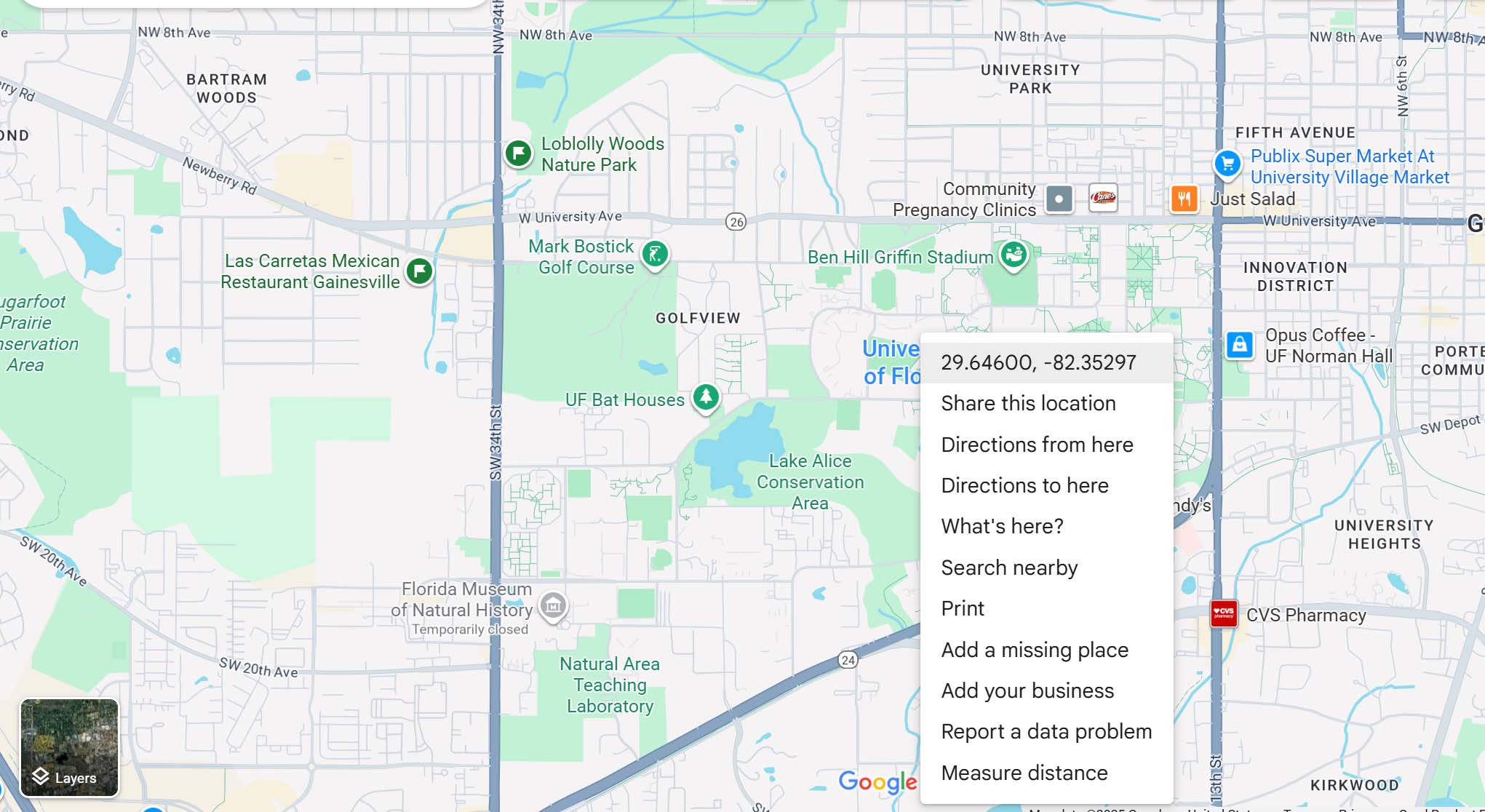
- Click on "What's here?" to display your GPS location.
You can filter the samples you want to view by selecting the year and the sample status.
- Log in to DDIS.
- Click on "My Samples" and find the DDIS ID for the sample. Then, click the "Diagnosis" link.
- Read the sample information, then click the "Diagnosis" tab to enter your diagnosis.
- You can refer this sample to an external specialist or other DDIS specialists.
- If you want to include a web page in your diagnosis, please use a complete URL that starts with https (e.g., https://edis.ifas.ufl.edu).
1) Search by Sample ID
Enter a DDIS sample ID, then click "Search" button.
2) Search by Keyword
Enter a sample's name (common name, scientific name, or family). Select a location, then click the "Search" button.
3) Search by Sample Types
Select the sample location, sample type, and display option. Next, enter the approximate submission time for the sample. Click the "Search" button.
4) Search by Sample Names
Enter the sample's name (common name, scientific name, or family) and the host plant name. Then, select the county location of the sample and click the "Submit" button.
- Log in to DDIS.
- Click "My Samples" and then click the "Revise" link.
- Describe the changes and upload new images for submission. A notification will be sent to the specialist who handled your initial submission.
Note: For record‑keeping purposes, users may only add new changes without modifying earlier submissions. The revision will be appended to the original. Use this feature to (1) describe changes to an existing sample, and (2) add additional images or other media.
- Log in to DDIS
- Click "My Samples" and view the sample.
- In the DDIS "Toolbox", click "Change this sample to private".